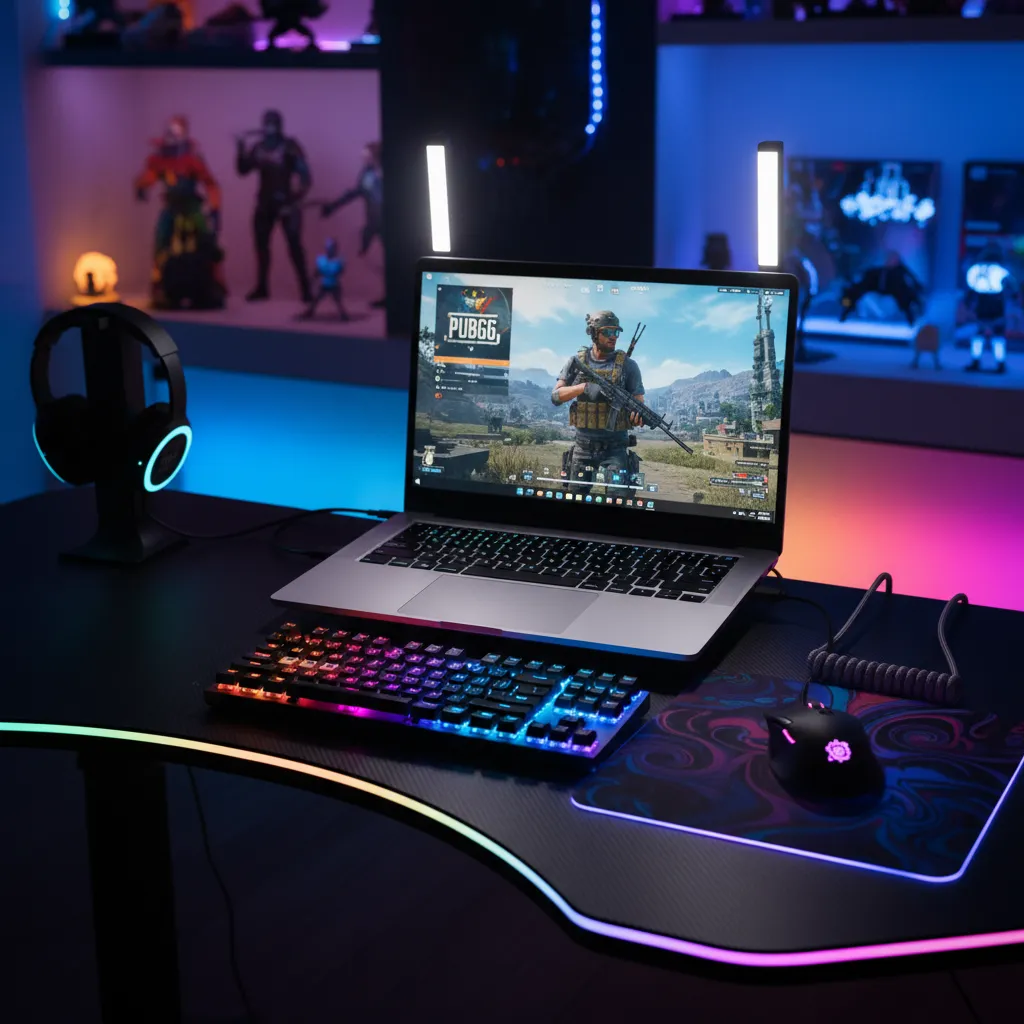
Installing and playing PUBG Windows version on an Intel MacBook Pro using Boot Camp.
Loading...
How to install PUBG (Windows version) on MacBook Pro?
If you’re a MacBook Pro user like me and have been wondering how to install the Windows version of PUBG on your machine, you’re in the right place. While Apple’s macOS doesn’t natively support PUBG, which is designed for Windows, there are ways to get this popular battle royale running with decent performance. I’ll walk you through the process with some tips and alternatives so you can jump into the action as soon as possible.
Why PUBG doesn’t run natively on macOS?
First things first, PUBG is a Windows-exclusive game, primarily built with Unreal Engine 4, which doesn’t have an official macOS port yet. Unlike Fortnite, which runs on Macs natively, PUBG does not. Attempts to run it on virtualization software like Parallels or CrossOver won’t work because PUBG’s anti-cheat system blocks those setups.
This means, if you own an Intel MacBook Pro, the best solution is to install Windows on your Mac via Boot Camp. For newer M1 or M2 Macs, things are a bit trickier since Boot Camp doesn’t support Apple Silicon chips. For those, your options boil down to game streaming or possibly using an Android emulator to play PUBG Mobile version — but more on that later.
Installation options for different Mac models
Your MacBook Pro’s model largely dictates your approach:
Mac Model
Recommended Method
Notes
Intel-based MacBook Pro
Boot Camp: install Windows & PUBG
Native Windows performance
Apple Silicon Macs (M1, M2, M3, M4)
Game streaming services or PUBG Mobile via emulator
No Boot Camp support, streaming preferred
Step-by-step guide: Installing PUBG on Intel MacBook Pro via Boot Camp
Getting PUBG to run on an Intel MacBook means running Windows alongside macOS. Here’s how I did it:
Create Windows Installation Media Download a Windows 10 or 11 ISO file from Microsoft’s official site.
Open Boot Camp Assistant Find this in your Utilities folder inside Applications.
Partition your disk Boot Camp will guide you to split your hard drive — one side macOS, the other Windows. You’ll want to allocate a minimum of 64GB for Windows to comfortably fit PUBG and other apps.
Install Windows Follow the on-screen prompts. Your Mac will reboot several times, so don’t be alarmed.
Set up Windows After installation, complete the initial Windows setup and install all Boot Camp drivers to ensure hardware compatibility.
Download and install PUBG Using the Windows environment, open the Steam client or PUBG website, and install PUBG just as you would on a regular PC.
Restart to switch OS Whenever you want to play PUBG, restart your Mac and hold down the Option key to choose Windows.
Remember, running PUBG this way provides the best performance because you’re running it natively on your Mac hardware, but it means you need to reboot every time you switch between macOS and Windows.
Can you install PUBG on M1 or M2 MacBook Pro?
Unfortunately, for Apple Silicon Macs, Boot Camp is not available. You can’t install Windows natively. Some software promises virtualization or emulation to run Windows but PUBG’s anti-cheat often blocks these methods, causing the game not to launch properly.
The most practical alternative is to use a game streaming service like NVIDIA GeForce Now or Xbox Cloud Gaming, which lets you stream PUBG to your MacBook over the internet. This method doesn’t require installing Windows or the game locally but depends on a stable, fast internet connection.
Alternative methods: Streaming and emulators
Game streaming services: Services like NVIDIA GeForce Now allow you to play PUBG on your Mac through cloud streaming. It’s simple and doesn’t require high-end hardware but can suffer from latency issues depending on your internet.
PUBG Mobile via emulator: If streaming isn’t an option, you can also try playing PUBG Mobile on your MacBook by using an Android emulator like BlueStacks. This isn’t the Windows version but still provides access to PUBG gameplay. BlueStacks runs well on both Intel and M1 Macs now.
Tips for optimal gaming performance on MacBook Pro
Allocate enough disk space and RAM for Windows via Boot Camp. PUBG is resource-heavy.
Keep your GPU drivers up to date in Windows.
If streaming, use an Ethernet connection or high-speed Wi-Fi for stable gameplay.
Lower in-game graphics settings if you experience lag.
Consider external peripherals like a gaming mouse or controller for better control.
FAQs
Q1: Can I install PUBG Windows version directly on macOS?
No, PUBG doesn’t have a native macOS version, so direct installation won’t work.
Q2: Is Boot Camp safe to use on my MacBook Pro?
Yes, Boot Camp is an Apple-supported tool that partitions your drive and allows you to run Windows safely.
Q3: Can I play PUBG on M1 MacBook Pro?
Not natively. The best options are streaming services or playing PUBG Mobile through an Android emulator like BlueStacks.
Q4: Do I need to reboot my Mac to switch between Windows and macOS?
Yes, using Boot Camp means dual booting, so reboot and hold Option key to switch OS.
Q5: Will streaming PUBG have input lag?
Potentially yes, streaming depends on your internet quality. Ethernet or strong Wi-Fi reduces lag.
Ovais Mirza, a seasoned professional blogger, delves into an intriguing blend of subjects with finesse. With a passion for gaming, he navigates virtual realms, unraveling intricacies and sharing insights. His exploration extends to the realm of hacking, where he navigates the fine line between ethical and malicious hacking, offering readers a nuanced perspective. Ovais also demystifies the realm of AI, unraveling its potential and societal impacts. Surprisingly diverse, he sheds light on car donation, intertwining technology and philanthropy. Through his articulate prose, Ovais Mirza captivates audiences, fostering an intellectual journey through gaming, hacking, AI, and charitable endeavors.
Disclaimer: The articles has been written for educational purpose only. We don’t encourage hacking or cracking. In fact we are here discussing the ways that hackers are using to hack our digital assets. If we know, what methods they are using to hack, we are in very well position to secure us. It is therefore at the end of the article we also mention the prevention measures to secure us.