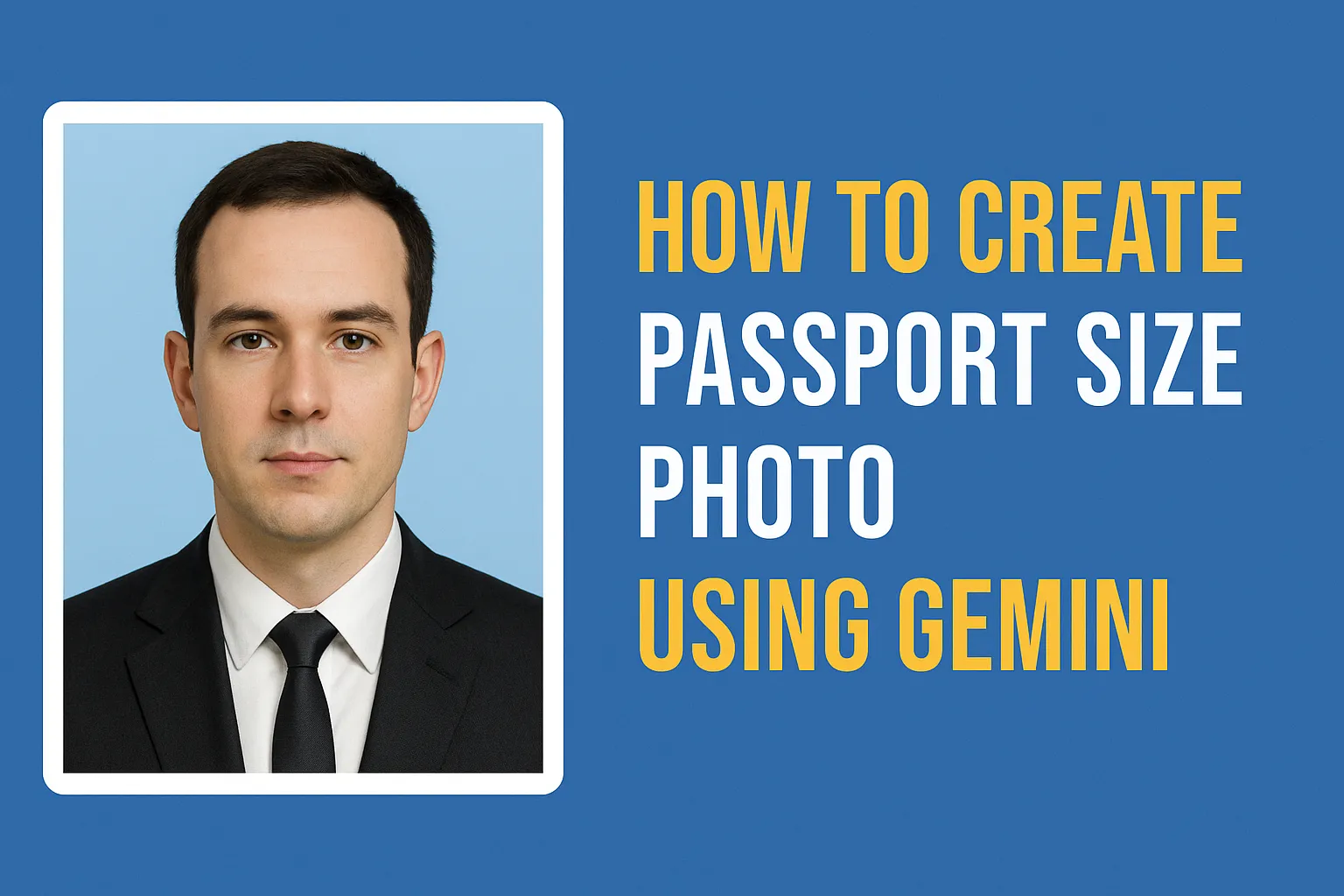
Featured image: A professional passport-size photo created using Google Gemini’s AI editing tool.
Loading...
Introduction
Passport photos are one of those small but annoying things that can waste an entire afternoon. You’ve got to dress right, find a decent photo studio, pay for prints, and hope the lighting doesn’t make you look like a cartoon villain.
That’s why when I discovered that I could create passport-size photos using Google Gemini, it felt like a minor miracle. No more waiting around or overpaying at photo centers. Just a few clicks—and done.
Why Making Passport Photos at Home Makes Sense
Passport photos have strict requirements. You need a plain background, neutral expression, proper lighting, and correct proportions. A professional studio does all that for you—but you can achieve the same results with AI tools today.
Traditional studios charge anywhere between ₹100–₹400 for a single photo session. Add travel and time, and it’s just not worth it for something so routine. Using Gemini’s AI image editing model, you can now take a simple selfie and turn it into a compliant, professional passport photo within minutes.
Google’s Gemini suite is already making waves for text and image generation (TechCrunch), and its Nano Banana image model is particularly skilled at refining photos and adjusting details.
What is Google Gemini’s Nano Banana Model
Gemini’s Nano Banana image model is part of its new AI lineup that focuses on photo generation and editing. It’s fast, intuitive, and good at understanding what you mean when you describe changes to an image.
You can tell Gemini things like:
“Remove background.”
“Add a formal outfit.”
“Improve lighting.”
…and it actually follows through. What’s even better is that you can specify passport photo standards—like lighting, centering, and background color—and Gemini will do the rest.
According to Google’s AI Blog, this feature uses contextual image understanding, meaning it “recognizes what’s important in an image and preserves details while improving quality.”
Step-by-Step: How to Create Your Passport Photo
Now, let’s get to the actual steps. You’ll be surprised how quick this process is once you know the right prompt.
Step 1: Open Gemini
Head to gemini.google.com. You can use either your desktop browser or the mobile app.
If you’re not logged in, sign in using your Google account.
Step 2: Start a New Chat
Click “New Chat” to begin a fresh session. Starting clean ensures Gemini won’t mix your instructions with earlier prompts.
Step 3: Upload Your Photo
Upload a photo of yourself. Make sure your face is visible and the lighting is decent. A simple, well-lit selfie against a light wall works great.
Try not to use heavily filtered or blurry photos. Gemini needs to see your features clearly to produce an accurate result.
Step 4: Use the Correct Prompt
Now, copy and paste this prompt into the chat:
Prompt: “Create a professional passport-size photo from the attached image. The person should be wearing a formal dark suit, white shirt, and tie. Keep the facial features identical to the original photo with natural skin tone and lighting. Use a plain light background (white or light gray) as per passport photo standards. Ensure the head is centered and well-lit, with no shadows, no filters, and a neutral expression.”
Then hit Enter and wait a few seconds.
Step 5: Let Gemini Work
Gemini will analyze your image and generate a clean, professional passport photo. It usually takes under 30 seconds.
You’ll see a new version with:
Neutral background
Adjusted clothing
Balanced lighting
Centered framing
It’s honestly impressive how natural the results look—no weird filters or fake smoothness.
Breaking Down the Prompt
Let’s understand why that prompt works so well:
“Create a professional passport-size photo” tells Gemini the goal right away.
“Formal dark suit, white shirt, and tie” sets the outfit expectation, even if your original photo is casual.
“Keep facial features identical” prevents unwanted face edits.
“Plain light background” enforces official standards.
“No shadows or filters” ensures compliance with government requirements.
“Neutral expression” prevents disqualification—smiles or exaggerated expressions are usually not accepted.
These small instructions help Gemini generate consistent, compliant results.
Example and Results
When I tried this with a simple selfie, Gemini returned a centered photo with a crisp white background, realistic lighting, and formal attire.
Honestly, it looked studio-quality—and I made it sitting on my couch. The AI even smoothed minor shadowing from my original photo without over-editing.
If you want to double-check passport photo standards for your country, refer to U.S. State Department Guidelines or your local passport authority’s website.
Creating Multiple Copies (and Why It’s Tricky)
If you want multiple copies (for printing or applications), you can try prompting Gemini like this:
“Create a printable sheet containing 8 identical passport-size photos based on the edited image. Arrange them neatly with small equal spacing between each photo. Keep the white background consistent across the sheet. Use a standard 4×6 inch (10×15 cm) layout suitable for photo printing.”
This often works—but not always perfectly. Gemini sometimes miscalculates spacing or sizing, which can cause issues during printing.
Better Way to Print Multiple Photos
Here’s my go-to method for consistent results:
Download your single Gemini-generated passport photo.
Open it in a photo editing app like Photoshop, GIMP (free), or Canva.
Create a new 4×6-inch canvas (standard photo paper size).
Copy-paste your photo multiple times with even spacing.
Print it on glossy photo paper.
This gives you total control over size and layout—no unexpected stretching or cropping.
Final Thoughts
Gemini’s Nano Banana image model genuinely changes how we create ID and passport photos. What once required a studio visit can now be done from home in minutes.
While I still recommend double-checking official size and background requirements before submission, Gemini’s results are consistently professional.
No travel. No waiting. No extra costs. Just you, your phone, and an AI that knows how to make your photo look official.
Next time you need a passport or visa photo—skip the studio. Try Gemini instead.
FAQs
Q1: Is it legal to use AI-edited passport photos?
Yes, as long as your photo meets official guidelines (size, lighting, background, expression). AI tools like Gemini only automate adjustments—you still control the final output.
Q2: What size should a passport photo be?
Most countries require 2×2 inches (51×51 mm). However, check your local passport authority’s requirements before printing.
Q3: Can Gemini change the background color?
Yes. You can specify “white,” “light gray,” or “off-white” backgrounds in your prompt. Gemini will adjust it accordingly.
Q4: Does Gemini edit facial features?
Not unless you ask it to. By including “keep facial features identical” in your prompt, you ensure your face stays natural and unchanged.
Q5: Can I use the Gemini-generated image for official documents?
Yes—provided it meets your country’s guidelines. Always preview the final image and confirm proportions and lighting before submitting.
Ovais Mirza, a seasoned professional blogger, delves into an intriguing blend of subjects with finesse. With a passion for gaming, he navigates virtual realms, unraveling intricacies and sharing insights. His exploration extends to the realm of hacking, where he navigates the fine line between ethical and malicious hacking, offering readers a nuanced perspective. Ovais also demystifies the realm of AI, unraveling its potential and societal impacts. Surprisingly diverse, he sheds light on car donation, intertwining technology and philanthropy. Through his articulate prose, Ovais Mirza captivates audiences, fostering an intellectual journey through gaming, hacking, AI, and charitable endeavors.
Disclaimer: The articles has been written for educational purpose only. We don’t encourage hacking or cracking. In fact we are here discussing the ways that hackers are using to hack our digital assets. If we know, what methods they are using to hack, we are in very well position to secure us. It is therefore at the end of the article we also mention the prevention measures to secure us.